
DateCue Guide
DateCue schedules when products publish, hide, and get tagged, in bulk or per product, with end dates. This guide covers both engines: bulk jobs for a group of products on one date, and per-product jobs for a date field that's different on every product.
Pick the engine that matches the job. If a whole group of products moves together on one date (a drop, a collection swap, a sale), use a bulk job. If each product has its own date (an expiry date, a per-item launch date), use a per-product job (see below).
Honesty note: DateCue schedules status, tags, and visibility. It doesn't change prices. Pair it with a discount app or your compare-at price for the price side of a sale.
Bulk jobs
Schedule a product drop
Publish a set of products at one launch date and time. Pick the products by collection, tag, or type, set Draft → Active as the action, and choose your go-live moment. Good for limited drops of 50-300 products at once.
Hide a seasonal range
Pull a whole collection or tag on a set date. Hide the winter range on March 1 and bring spring live the same day with a second job. Good for stores that rotate collections in and out of season.
Start & end a sale section
Tag a group of products in on a start date and untag them when the sale ends, on schedule. This is the tags-and-visibility half of a sale; use your existing discount method for the price side.
Matching-products preview
Before you save a bulk job, DateCue shows you how many products it will actually affect ("this will affect 214 products") based on your collection, tag, or type filters. Check the count before you commit, especially on a job that hides or unpublishes.
Need something the templates above don't cover? The custom group schedule builder lets you set tag or status changes for any combination of collections, types, and more, on your own date.

Per-product scheduling
Use this engine when each product has its own date, stored in a Shopify metafield, rather than one date for the whole group. Before you create a job, you need a date metafield on your products. Here's how to set everything up from scratch.
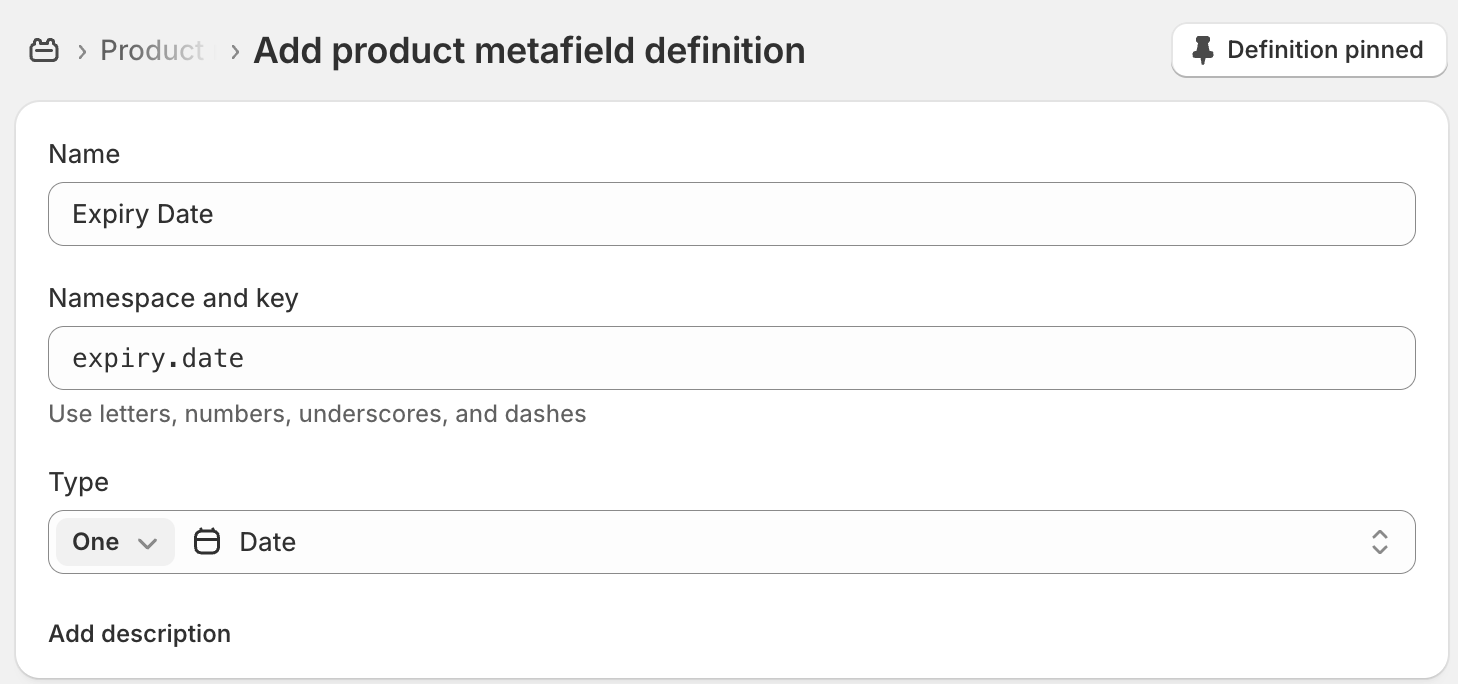
Step 1: Create a date metafield definition
Metafield definitions tell Shopify what custom fields your products can have. You only need to do this once per field type.
DateCue supports two metafield types. Date fields trigger at midnight (00:00) on the selected day, useful for expiry dates or any automation where the exact time doesn't matter. Date and time fields trigger at the exact time you set, useful for product launches or time-sensitive actions.
- In your Shopify admin, go to Settings → Custom data → Products
- Click Add definition
- Give it a name (e.g. "Expiry Date") and a key (e.g.
expiry_date) - Set the type to Date or Date and time
- Click Save
Step 2: Apply the metafield to your products
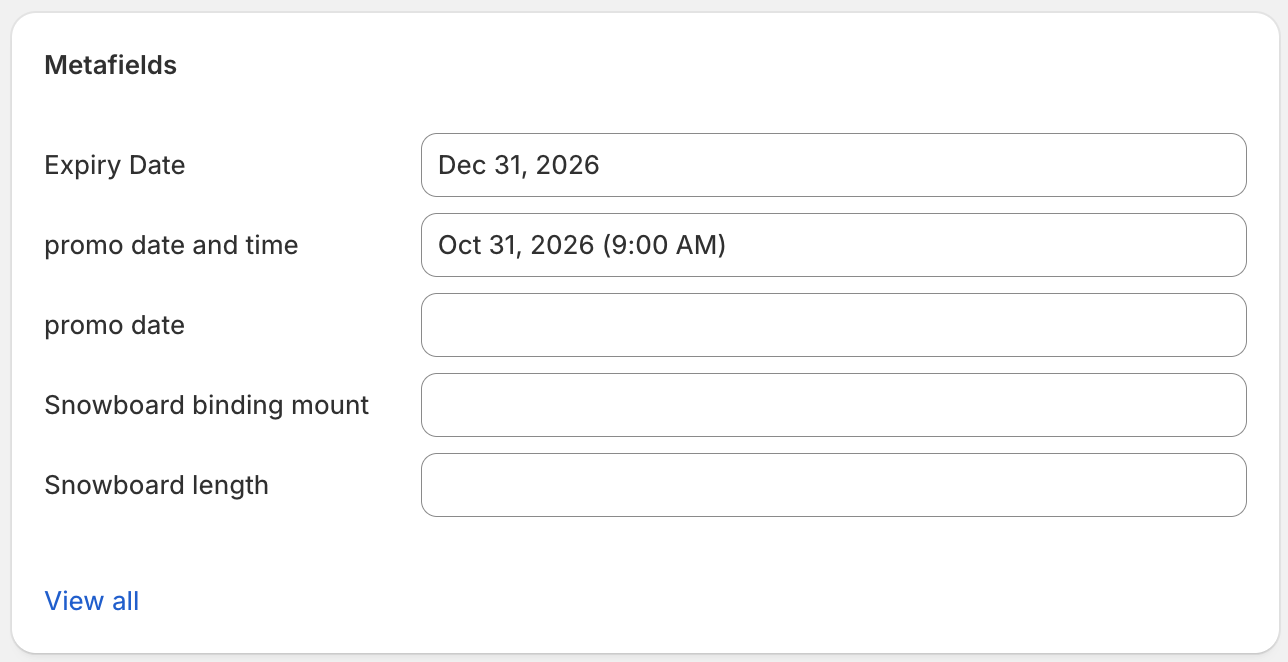
- Go to Products and open any product
- Scroll down to the Metafields section
- Set a value for your new date field
- Save the product
Repeat for any products you want DateCue to track. You can bulk-edit metafields using Shopify's bulk editor if you have many products.
Step 3: Create a workflow in DateCue
- Open DateCue from your Shopify admin
- Click Create workflow
- Select the metafield you created (e.g.
custom.expiry_date) - Set your trigger: On the date, or a number of days before or after
- Choose an action: change status, add/remove tag, send email, or fire a webhook
- Optionally add filters to limit which products the workflow applies to
- Save the workflow
Step 4: Verify it's working
After saving your workflow, DateCue will sync your products in the background. If you've just added or changed a metafield date, click Sync Now on the dashboard to pick up the changes immediately.
- Open DateCue from the left panel in your Shopify admin
- The dashboard shows your tracked products count and upcoming scheduled executions
- After the date passes, go to Logs to confirm the action ran successfully

Note: DateCue checks for due actions every minute. Your workflow will run within a minute of the scheduled date and time.
Use cases
Here are the most common ways merchants use DateCue.
Auto-archive products on their expiry date
Perfect for food, beverage, supplements, or cosmetics stores with best-before dates.
- Create a Date metafield called "Expiry Date" (
custom.expiry_date) - Set the expiry date on each relevant product
- Create a workflow: trigger On the date, action Change status → Archived
Products will be automatically archived when their expiry date arrives, no manual checking required.
Launch products on a specific date and time
Great for limited drops, preorders, or seasonal collections.
- Create a Date and time metafield called "Launch Date" (
custom.launch_date) - Set products to Draft status in Shopify
- Set the launch date and time on each product
- Create a workflow: trigger On the date, action Change status → Active
Products will go live automatically at the exact time you set, no staying up at midnight.
Rotate seasonal collections
Useful for stores with products that go in and out of season.
- Create two metafields: "Season Start" and "Season End"
- Create a workflow for Season Start: action Change status → Active
- Create a second workflow for Season End: action Change status → Draft
Each product will activate and deactivate automatically based on its season dates.
Send staff alerts before a date arrives
Useful for getting ahead of expiry dates, contract renewals, or any date that needs human attention.
- Create a date metafield for the relevant event
- Create a workflow: trigger 7 days before the date, action Send email alert
- Enter the email addresses of the staff who should be notified
Your team will receive an email listing the product name and date, giving them time to act before it's too late. This is a paid-plan action; see what's on each plan.
Using filters
Filters let you limit which products a workflow applies to. You can combine multiple filters on a single workflow.
Status filter
Only run the workflow on products with a specific Shopify status (Active, Draft, Archived, or Unlisted). For example, only archive products that are currently Active.
Include tag filter
Only run the workflow on products that have all of the specified tags. Useful for targeting a specific product range.
Exclude tag filter
Skip products that have any of the specified tags. Useful for protecting certain products from being affected by a workflow, for example excluding products tagged no-auto-archive.
Note: If you add a tag to a product that excludes it from a workflow, any pending scheduled actions for that product will be cancelled on the next sync.
Actions reference
Change product status
Sets the product's Shopify status to Active, Draft, Archived, or Unlisted. This is the most common action for automating product launches and expiry.
Add or remove a tag
Adds or removes a single tag from the product. Useful for managing collections, filters, or internal tracking systems that rely on tags.
Send email alert (Starter and Scale)
Sends an email to one or more addresses. You can customise the subject and body, and use placeholders like {{productTitle}} and {{metafieldValue}} in the message. If no recipients are specified, the email goes to your store's default notification addresses.
Send webhook (Scale only)
Sends an HTTP POST request to a URL of your choice when the date arrives. The payload includes the product ID, title, handle, metafield value, and workflow name. Use this to trigger actions in external systems like ERPs, Zapier, or custom integrations.
What's on each plan
Every plan includes on-date triggers and before/after offsets, for both bulk and per-product jobs. What changes across plans is your monthly cue allowance and which action types you can use. A cue is one scheduled action applied to one product.
- Free: 100 cues a month, status and tag actions, manual bulk jobs. No email or webhook actions.
- Starter ($9/mo): 10,000 cues a month, adds the email action.
- Scale ($19/mo): 100,000 cues a month, adds the webhook action.
See the pricing page for full plan details.
FAQ
Does DateCue support the "Date" metafield type?
Yes. DateCue supports Shopify's Date metafield type. A Date metafield triggers at midnight (00:00) on the selected day, which is what most merchants use for expiry dates, since the exact time doesn't matter.
Does DateCue support the "Date and time" metafield type?
Yes. DateCue also supports Shopify's Date and time metafield type. A Date and time metafield triggers at the exact time you set, which is what most merchants use for product launches or any time-sensitive action.
You can mix both types across different metafields in the same store; each per-product job just points at whichever metafield holds the date you want to trigger on.