
How to Email Your Team Before a Shopify Product Expires

You can't reorder stock the day something expires. The people who manage procurement, warehouse, and compliance need lead time, weeks of it sometimes. This guide shows how to email your team before a Shopify product expires, automatically, so the right people get a heads-up before any expiry date hits. These are product expiration alerts for your staff: send an alert X days before the date, and stack several so you get tiered warnings rather than one.
Why do you need lead time before a product expires?
Reordering or pulling stock takes time, so your team needs warning before the expiry date, not on the day. Procurement, warehouse, and compliance staff often need weeks of notice to act. An automatic email at a set lead time gives them that window without anyone watching a spreadsheet.
A buyer for a supplement brand has 300 SKUs with rolling expiry dates. Each one needs a reorder decision made 4 to 6 weeks before the current stock runs out or expires. Shopify's future publishing can schedule a product to go live, but it won't warn anyone ahead of an expiry. Manually tracking those dates in a spreadsheet works until someone goes on leave, or the spreadsheet falls out of sync, or a date just slips through.
DateCue watches the expiry metafield on every product and sends an email to whatever staff address you configure, automatically, at whatever lead time you set. No spreadsheet required.
How do you set up the email alert workflow?
In DateCue, point a workflow at your expiry date metafield, set the timing to fire a chosen number of days before that date, and pick "Send staff email notification" as the action. Add an Include tags filter if you only want certain products to trigger it. That's the whole setup.
This workflow requires you to have an expiry date metafield on your products. If you haven't set that up yet, see the guide on auto-hiding products on expiry, which walks through the metafield setup. You could also build this in Shopify Flow, but Flow struggles to compare a future metafield date to today, which is the whole problem the Flow date comparison guide digs into.
Timing: Before the date (30 days)
Action: Send staff email notification
Filter: Include tags: perishable
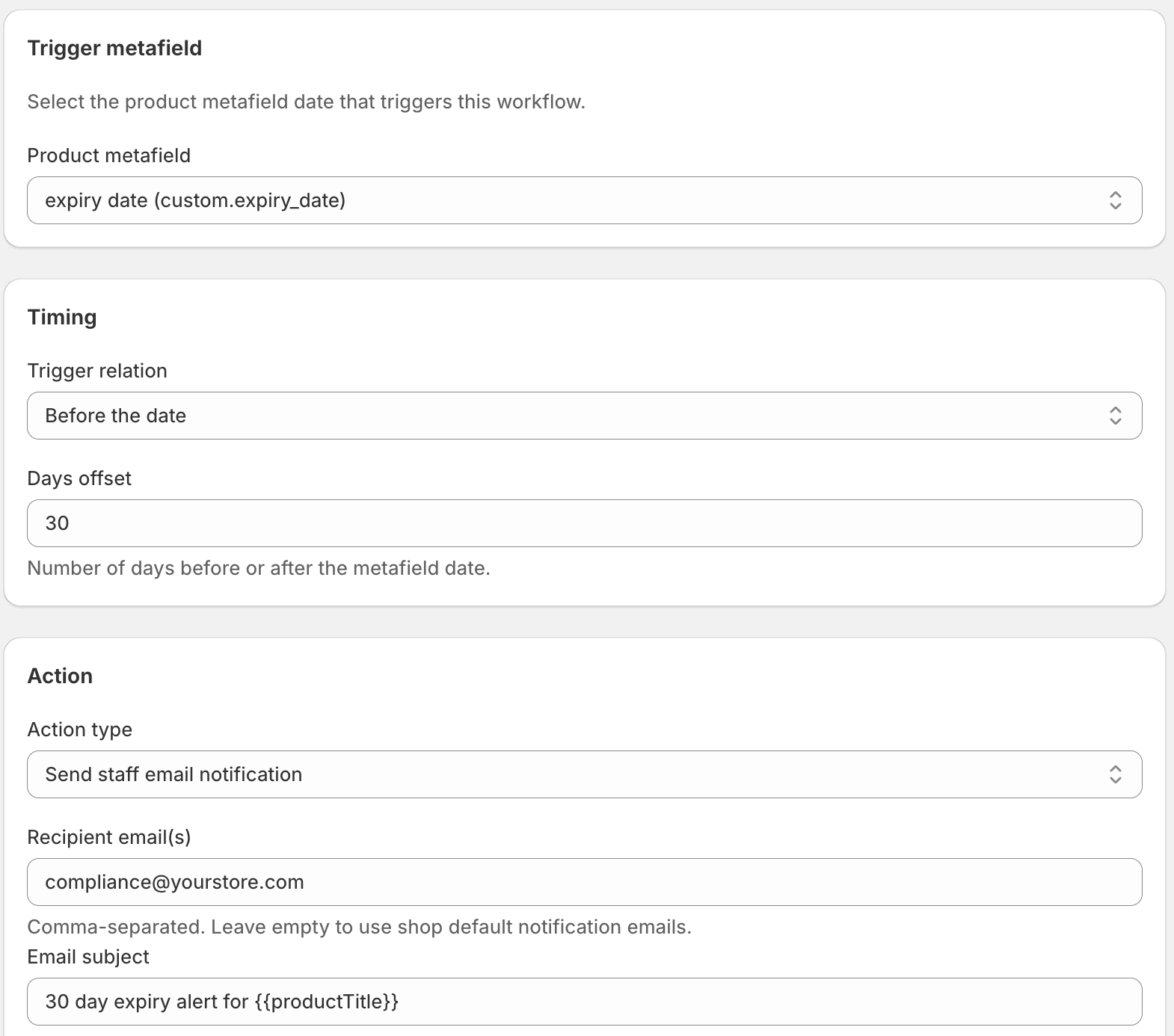
The Include tags filter targets only products carrying a given product tag such as "perishable" (or whatever tag you use to mark products that need expiry management). If you want every product with the metafield to trigger an alert, leave the filter empty.
How do you set up tiered expiry warnings?
You set up tiered warnings by running one DateCue workflow per offset on the same expiry metafield, each firing at a different lead time. A common pattern is 30/14/7-day, but the same idea covers a 10-day, 5-day and 2-day sequence, or an "alert when 10 days remain" reminder. Each workflow is independent, so the warnings escalate on their own.
Different teams act on different timelines, so a single alert rarely fits everyone. A 30-day alert gives procurement time to reorder. A 14-day alert nudges anyone who hasn't acted. A 7-day alert tells operations the product is about to come off sale. Add or drop offsets to match how your store works.
Timing: Before the date (14 days)
Action: Send staff email notification
Filter: Include tags: perishable
Timing: Before the date (7 days)
Action: Send staff email notification
Filter: Include tags: perishable
One thing to be clear about: these emails go to your team, not your customers. DateCue sends staff and team notifications only. It can't email the shopper who bought the product. This is built for procurement, operations, and compliance lead time, so if you need customer-facing reminders you'd use an email platform like Klaviyo or Shopify Email instead.
Who gets the email?
Whoever you choose. You set the recipient email address when you build the workflow in DateCue, and it doesn't have to be the store owner. Point it at your buyer, your warehouse manager, or your compliance officer. Each workflow has its own recipient, so different alerts can reach different people.
It doesn't have to be the store owner: set it to your buyer, your warehouse manager, your compliance officer, whoever needs to know. Each workflow can have a different recipient, so your 30-day procurement alert goes to the buyer and your 7-day operational alert goes to the warehouse team. If you'd rather a launch heads-up than an expiry one, the same email action works the other way round in our guide on emailing staff before a product launch.
💡 Combine with auto-hide: This email alert workflow and the auto-hide on expiry workflow are natural partners. The email gives your team lead time to act. The auto-hide is the safety net that flips the product status to draft if nothing else happens. You can also add an "expires soon" tag before expiry so the storefront shows the urgency too.
Frequently asked questions
Can I send to multiple email addresses?
Each DateCue workflow sends to one configured email address. If you need to alert multiple people, you can either send to a team distribution list (e.g. warehouse@yourstore.com) or set up two workflows with different recipients and the same timing.
What does the email actually say?
DateCue's email notification includes the product name, the metafield date, and a link to the product in your Shopify admin. It gives the recipient enough context to take action without needing to search for the product.
Can I set different alerts for different product categories?
Yes. Use the Include tags filter to create separate workflows for different product groups. A workflow with Include tags: "frozen" fires only for frozen goods; another with Include tags: "cosmetics" fires only for cosmetics. Each can have a different recipient and a different lead time.
Does this work alongside the auto-hide workflow?
Yes. Run as many workflows as you need on the same metafield. The email alert fires before expiry to give your team a heads-up; the auto-hide workflow fires after expiry to pull the product. They're independent and don't conflict.
Can I set 10-day, 5-day and 2-day warnings before expiry?
Yes. Build one workflow per offset on the same expiry metafield: one at 10 days before, one at 5, one at 2. Each sends its own staff email, so you get a clean escalation. You can use any offsets you like; 10/5/2 and 30/14/7 are both common.
Can DateCue email my customers before a product expires?
No. DateCue sends staff and team emails only, never customer emails. The alerts are for procurement, operations, and compliance lead time inside your business. If you need to message shoppers, use a customer email platform like Klaviyo or Shopify Email instead.
How much does DateCue cost?
DateCue is free forever for up to 100 product cues a month. Paid plans start at $9/month (Starter: 10,000 cues) and scale to $19/month (Scale: 100,000 cues, plus webhooks). All paid plans include a 14-day free trial.
Give your buyer real lead time.
One workflow is free. Layer in a second alert for $9/mo.
Install free on ShopifyFree: 100 cues/month. Starter: 10,000 cues/month for $9/mo.