
How to Add an "Expires Soon" Tag to Shopify Products Before They Expire

An expires soon tag added before the expiry date turns a deadline into one last sale. Catch a product 14 or 30 days out and the tag can feed a clearance collection, switch on urgency messaging, and help you move stock before you ever have to pull it. DateCue adds that expires soon tag automatically, on a date you set.
Why is tagging "before" more useful than acting "after"?
Tagging before expiry is proactive: the tag fires days ahead of the date, so you get a selling window to clear stock at a discount. The auto-hide on expiry workflow is reactive, acting only once time runs out. Together they cover the whole end of a product's life, but the early tag is what saves the sale.
What you do with that tag is up to you. Common approaches:
- Feed a "Last Chance" or "Clearance" automated (smart) collection so expiring products surface on their own
- Trigger a sale badge in your theme (if your theme uses a tag to display badge labels)
- Give ops teams a visual signal in the Shopify admin: products carrying the expires-soon tag stand out in product lists
What does the expires soon workflow look like in DateCue?
The workflow watches a date metafield on each product and adds the expires-soon tag a set number of days before that date arrives. You point it at a date metafield, choose how many days early to fire, pick "add tag" as the action, and name the tag. That's the whole setup.
Timing: Before the date (14 days)
Action: Add tag → expires-soon
Filter: Status = Active, Exclude tags: clearance
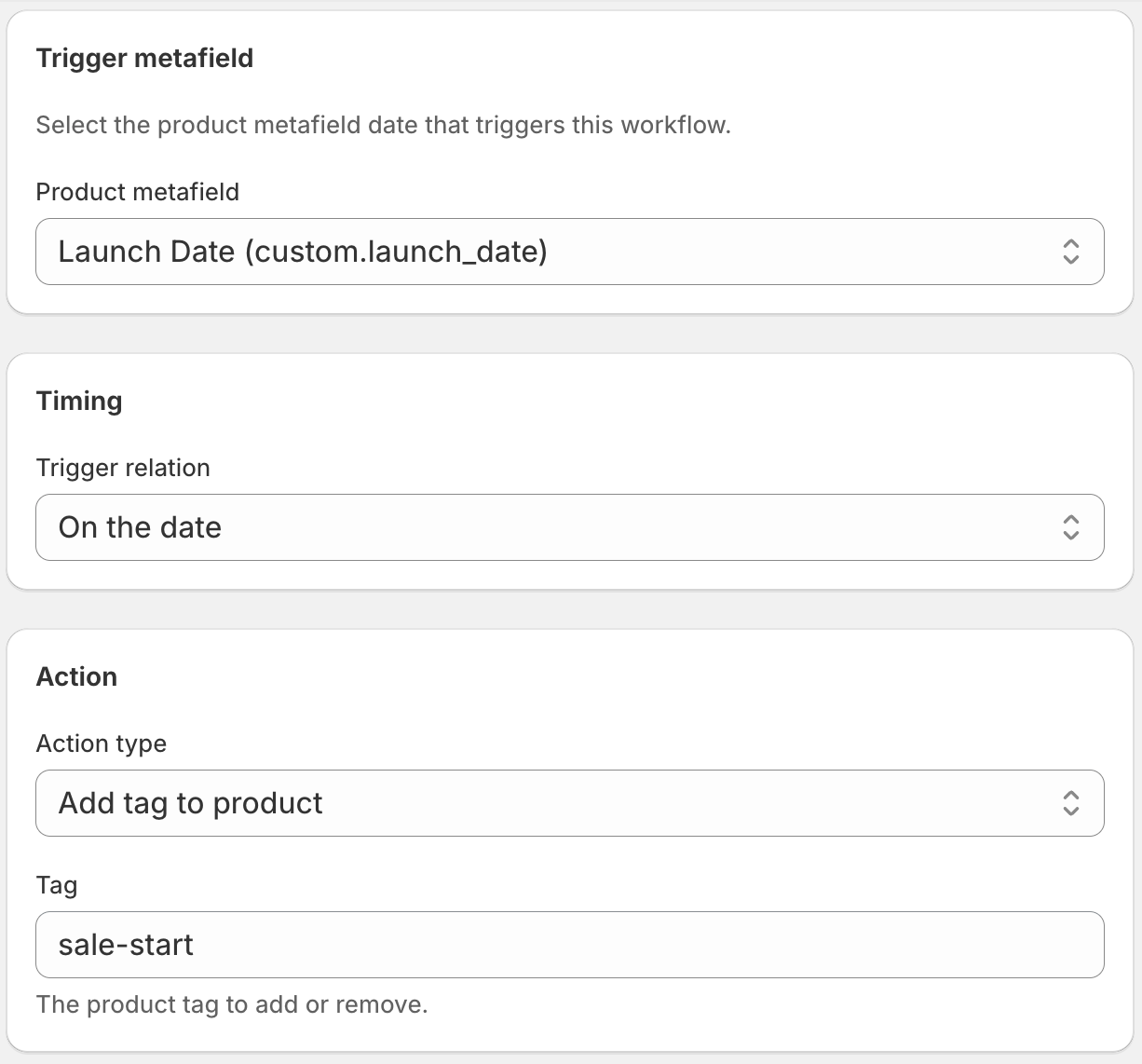
The filter here is doing two things. The Active status filter makes sure the tag only goes on products currently listed (no point tagging a product you've already pulled). The Exclude tags filter skips anything already tagged "clearance," since those products are being actioned through a different process.
Can I layer two warnings at different timeframes?
Yes. You're not limited to a single warning. A common setup for food or supplement stores is two separate DateCue workflows on the same date metafield, one firing 30 days out and one firing 7 days out. Each adds its own tag at its own offset, so the same product picks up an early heads-up and then a tighter last-call signal as expiry nears.
- 30 days before: Add tag "expires-soon" to feed the clearance collection, giving staff time to run a promotion
- 7 days before: Add tag "last-week" for tighter urgency, which could trigger a deeper discount or a last-chance email to subscribers
Each is a separate DateCue workflow on the same metafield with a different "Before" offset. They stack on the same product as the dates approach.
How do I create a "Last Chance" smart collection in Shopify?
In your Shopify admin, go to Products, then Collections, then Create collection, and set it to Automated. Add one condition: Product tag is equal to expires-soon. Save it with a name like "Last Chance" or "Clearance." From then on, every product DateCue tags lands in that collection on its own, with no manual sorting. See Shopify's automated collections guide for the full rule list.
💡 Pair with the auto-hide workflow: This tag workflow and the auto-hide on expiry workflow are designed to work together. The expires-soon tag creates a clearance window before expiry. The auto-hide workflow closes the product down when time runs out. Want to warn your team as well? The email-the-team-before-expiry workflow sends a heads-up on the same date. For more end-to-end recipes, see the DateCue product-date guide.
Frequently asked questions
Can I set two different warnings at different timeframes?
Yes. Create two separate DateCue workflows on the same metafield, each with a different "Before the date" offset (e.g. 30 days and 7 days). They fire independently and both apply to the same products.
How do I create a "Last Chance" smart collection in Shopify?
Go to Products → Collections → Create collection, set it to Automated, and add a rule: Product tag is equal to expires-soon (or whatever tag you use). Products with that tag will appear in the collection automatically.
What's the difference between this and the auto-hide workflow?
This workflow fires before the expiry date and adds a tag. It's proactive, giving you a window to sell through stock. The auto-hide workflow fires after the date and changes product status. It's reactive, pulling the product from your store when time's up. They're designed to be used together.
Will the "expires-soon" tag get removed automatically too?
Not by this workflow. It only adds the tag. You can set up another workflow to remove the tag after the expiry date passes, but in most cases the auto-hide workflow will draft or archive the product anyway, so the tag on a non-active product doesn't really matter. It's optional cleanup.
How much does DateCue cost?
DateCue is free forever for up to 100 product cues a month. Paid plans start at $9/month (Starter: 10,000 cues) and scale to $19/month (Scale: 100,000 cues, plus webhooks). All paid plans include a 14-day free trial.
Turn expiry into one last sale.
Free for one workflow. Set up the expires-soon tag in five minutes.
Install free on ShopifyFree forever: 100 cues/month. No card required.