
How to Auto-Hide Shopify Products When Their Expiry Date Passes

Selling an expired product isn't just embarrassing. For food, cosmetics, and supplements, it can be a genuine compliance risk. The problem is that Shopify has no native way to make a product inactive on a specific date, so it won't watch your expiry dates for you. This guide shows how to auto-hide Shopify products when their expiry date passes, so a product can expire at a certain date and be automatically removed from sale, using one metafield and one workflow.
Why do expired products keep selling on Shopify?
Expired products keep selling because Shopify treats your expiry date as plain text in a product metafield, not as a rule. A food store sells protein bars with a best-before date of March 15. Someone orders on March 22. Nothing was watching that date, so the order went through.
The refund, the apologetic email, the one-star review: all preventable, all painful. And this isn't a niche scenario. It happens to supplement stores, cosmetics brands, specialty food retailers, event ticket sellers, anyone whose products have a hard date after which they shouldn't be sold. Manual checking works until your catalogue is 50 products deep. After that, things slip through.
Can Shopify Flow auto-hide products by expiry date?
No. Shopify has no native expiry date automation, and Shopify Flow can't query products by a metafield date (a known platform limitation, explained in full in our guide to why Flow date comparisons don't work). People reach for a daily Flow date check, then find it runs but doesn't execute correctly. The usual workaround is a calendar reminder or a weekly spreadsheet check. Both work until they don't.
If you've used Launchpad before, this is the gap it left: a clean way to make products unavailable after a certain date without babysitting them. DateCue is the date-driven alternative for that job. One thing to be straight about: DateCue moves a product to draft or archived, which takes it off your storefront entirely. It doesn't set inventory to zero or render a countdown timer on the page. A storefront countdown is a theme feature, not something DateCue does.
DateCue watches your metafield dates every minute. When an expiry date passes, it changes the product status automatically. No code, no Flow triggers, no cron jobs.
How do you set up an expiry date metafield?
In Shopify admin, go to Settings → Custom data → Products and add a new metafield definition. Give it a name like Expiry Date, a key such as custom.expiry_date, and the Date type. Once saved, you can set the date on any product. The full definition looks like this:
- Name: Expiry Date (or Best Before, Use By, whatever matches your business language)
- Namespace and key:
custom.expiry_date - Type: Date, or Date and time if you need precise timing
Once the definition is saved, you can set the date on individual products through the product editor, via Bulk Editor, or by CSV import. DateCue will pick up whichever products have the metafield populated.
How do you build the auto-hide workflow in DateCue?
Create a new workflow in DateCue, point it at your custom.expiry_date metafield, set the timing to After the date (0 days), and choose the action Change product status to Draft. Add a filter for Status = Active so it only touches live products. That's the whole setup, shown below:
Timing: After the date (0 days)
Action: Change product status → Draft
Filter: Status = Active
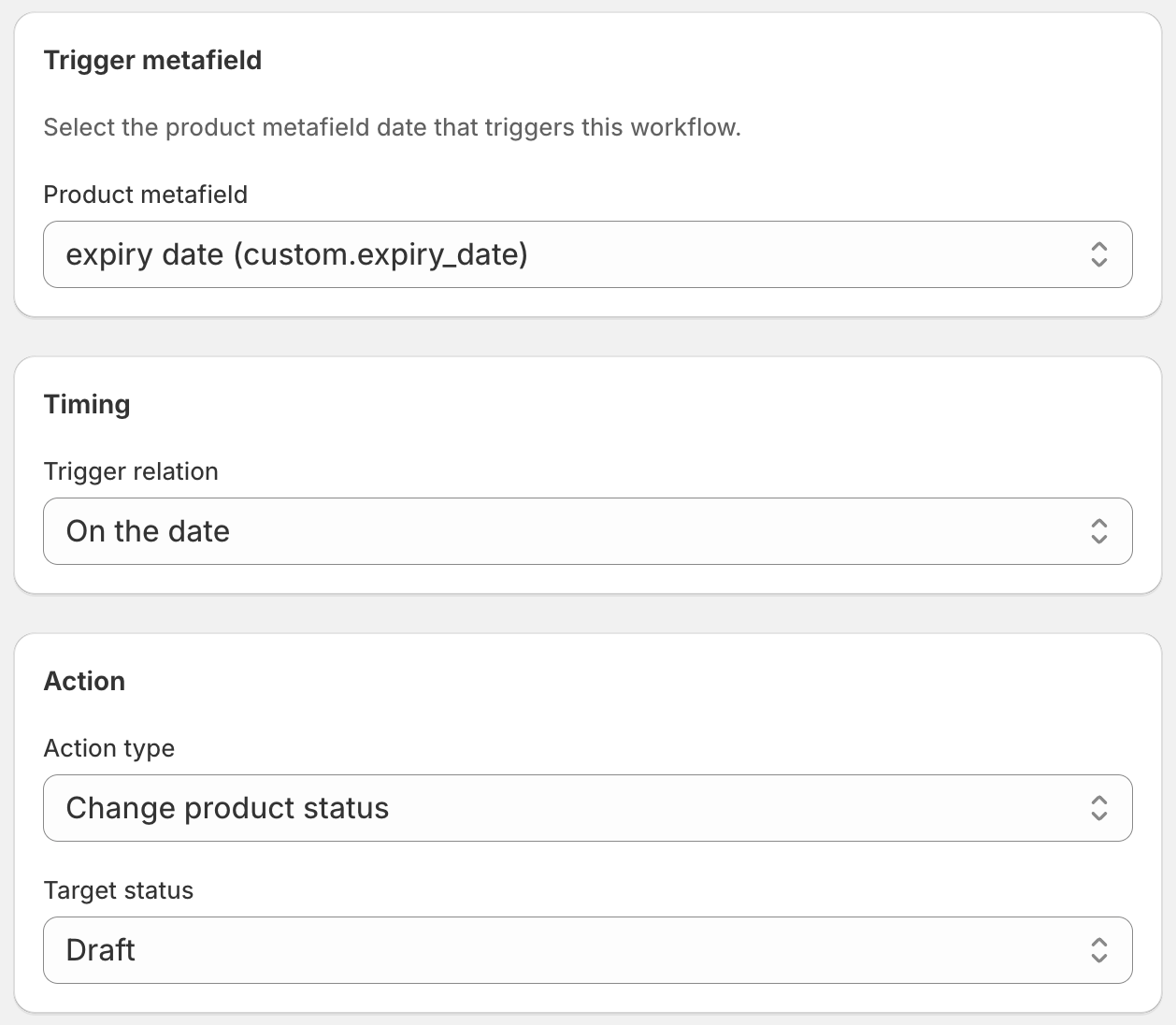
The Active status filter is worth explaining. Without it, the workflow would run against every product with the metafield, including ones you've already manually put into draft for other reasons. The filter makes sure DateCue only acts on products that are currently live, so it doesn't interfere with your existing drafts.
Draft vs Archived: which should you use?
For most expiry cases, set the product to Draft. Draft hides it from your storefront but keeps it fully editable and recoverable, so you can republish when new stock arrives. Use Archived when you want the product permanently off-sale and reflected as discontinued in reporting, which suits regulated industries needing a clean audit trail.
The workflow above moves products to Draft. That's usually the right choice for expiry: the product still exists in your admin, you can view its history, and if you need to reinstate it (say, a new batch arrives), you can publish it again. The difference between Active, Draft, and Archived is set out in Shopify's product status documentation.
If you'd rather have expired products completely off-sale and reflected correctly in sales reports, use Archived instead. Archived products don't appear in the active product list, but they're not deleted: they're moved to a separate view. For regulated industries like food and pharma, archiving can be the cleaner audit trail.
For compliance-heavy use cases, there's a more detailed guide: compliance automation for regulated Shopify products.
How do you get a warning before a product expires?
Run a second DateCue workflow on the same metafield, set to "Before the date". A few weeks out, it can add an "expires-soon" tag (to feed a clearance collection) or email your team so a buyer has time to reorder. The auto-hide workflow still handles the product the moment it actually expires.
DateCue lets you run multiple workflows on the same metafield. A second workflow set to "Before the date (14 days)" can add an "expires-soon" tag to feed a clearance collection, or you can set up a staff email alert 30 days before so your buyer has time to reorder. Tags like this drive Shopify's automated collections, so a clearance grid updates itself.
💡 Products with no expiry date set: DateCue only acts on products where the metafield has a value. Products without an expiry date set are completely ignored by this workflow, so it's safe to apply to your whole catalogue, not just the subset you know has dates.
How quickly does DateCue act?
DateCue executes due actions every minute, so when an expiry date passes the product moves to draft within about a minute. New metafield values from Shopify are detected within a 5-minute sync window. If you've just updated an expiry date and need it picked up immediately, hit Sync Now in the dashboard. Either way, no more "sold after expiry" because the product sat live for three days.
Frequently asked questions
What's the difference between Draft and Archived?
Draft hides the product from your storefront but keeps it fully editable: you can add new stock, change the date, and republish. Archived is a more permanent off-sale state: the product doesn't appear in your active product list and is treated as discontinued in reporting. For most expiry cases, Draft is easier to manage. For regulated industries where you need a clear audit trail, Archived is the better choice.
What if I have hundreds of products with expiry dates?
That's exactly what DateCue is built for. One workflow covers all products with the metafield set. Each plan has a monthly cue budget instead of a product cap (100 on Free, 10,000 on Starter, 100,000 on Scale), so pick the plan that fits your volume.
Does DateCue work with both date and date_time metafields?
Yes. If you use the date type, DateCue treats the expiry as occurring at the start of that day (midnight). If you use date_time, it fires at the exact time you specify. Use date_time if you need precise timing, for example if a product should stop selling at noon rather than at midnight.
Can I get notified before a product expires, not just after?
Yes. Set up a second workflow on the same metafield with "Before the date" timing. You can add a tag (to feed a clearance collection) or send a staff email alert. See the guide on adding an "expires-soon" tag before expiry for the full setup.
Can I make a product go inactive on a specific date?
Yes, that's the core of this setup. Put the date in a metafield, and DateCue changes the product status to draft or archived on that day, so it goes inactive and drops off your storefront automatically. This works well for digital products you only want available for a set window, say seven days, then removed.
Does DateCue show a countdown timer or set inventory to zero?
No. DateCue moves the product to draft or archived on the date, which takes it off sale entirely. It doesn't set inventory quantity to zero, and it doesn't render a storefront countdown. A visible countdown is a theme or app feature; pair one with DateCue if you want the timer plus the automatic hide.
How much does DateCue cost?
DateCue is free forever for up to 100 product cues a month. Paid plans start at $9/month (Starter: 10,000 cues) and scale to $19/month (Scale: 100,000 cues, plus webhooks). All paid plans include a 14-day free trial.
Stop thinking about expiry. Start free.
Set the workflow once. DateCue watches your catalogue every minute and handles the rest.
Install free on ShopifyFree forever: 100 cues/month. No card required.