
Add a Shopify Last Chance Tag Before a Product Is Discontinued

Discontinuing a product is a sales opportunity if you handle it right. A Shopify last chance tag, applied automatically before the product disappears, feeds a clearance collection and creates genuine urgency, without you manually tagging anything.
Why does the last-chance window matter?
A last-chance window turns a quiet discontinuation into a final sales push. Customers who missed a product's run wish they'd known it was leaving, and a Last Chance section gives them that signal. The problem is that tracking which products are retiring, and tagging them in time by hand, almost never happens consistently.
DateCue solves this with a single metafield: custom.discontinue_date. Metafields are Shopify's way to attach custom data to a product. Set the date on products you're retiring and two workflows handle the rest. The last-chance tag goes on 14 days before, and the product gets archived on the day itself.
Step 1: Create the discontinuation date metafield
The metafield is where each product stores its discontinuation date, and DateCue reads that field to know when to act. In your Shopify admin, go to Settings, Custom data, Products and add a new definition with these two values, then save it once for the whole store:
- Namespace and key:
custom.discontinue_date - Type: Date
Set this on products you're winding down. You can set it well in advance, since DateCue checks the date and fires at the right time regardless of when you set it. See Shopify's product details documentation for where metafields appear on the product page.
Step 2: Create the Last Chance smart collection
The smart collection is the storefront page that shows every tagged product, and it builds itself from one rule. In your Shopify admin, go to Products, Collections, Create collection, set the type to Automated, and add the rule Product tag is equal to last-chance. Save it. The collection then populates the moment products start getting the tag.
Shopify's automated collections documentation covers the rule options if you want to combine the tag with other conditions, like a specific product type.
Step 3: The DateCue workflows
Two DateCue workflows do the actual work, both watching the same custom.discontinue_date metafield. The first adds the last-chance tag 14 days before the date, which fills your clearance collection while the product is still on sale. The second sets the product's status to Archived on the day itself, pulling it from the storefront cleanly.
Workflow 1, add the last-chance tag 14 days before discontinuation:
Timing: 14 days before the date
Action: Add tag → last-chance
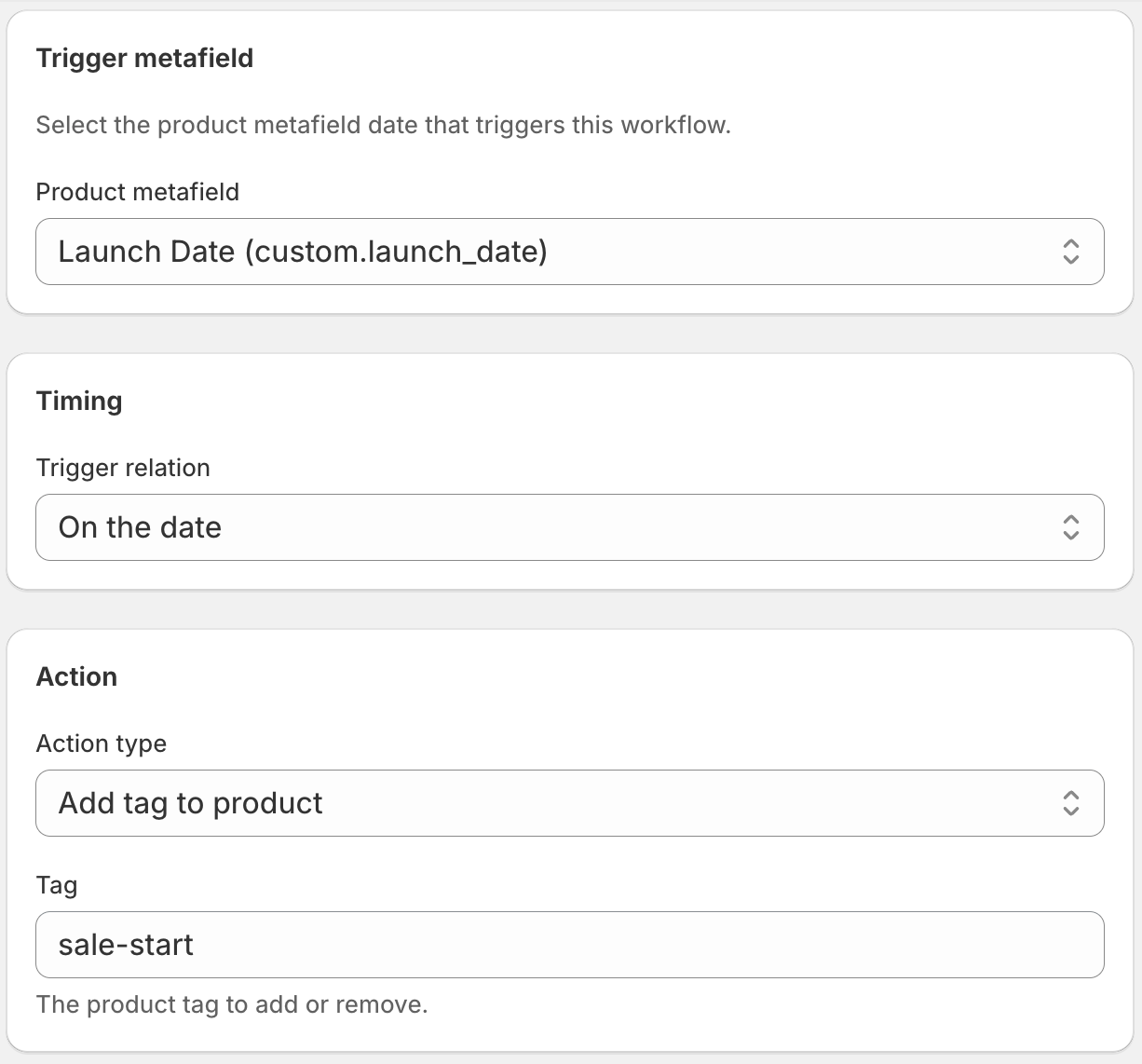
Workflow 2, archive the product on discontinuation day:
Timing: On the date
Action: Set status → Archived
For the full archiving workflow guide, see Archive Shopify Products Automatically on Their End Date. If you want the same date logic for ongoing sales rather than discontinuations, the date-based clearance tag guide covers that pattern.
How long should the lead time be?
The lead time is how many days before discontinuation the tag appears, and 14 days suits most stores. A fast-moving food or beverage store might use 7 days, because stock clears quickly. A specialty retailer with customers who plan purchases ahead might use 30. Change the offset in Workflow 1 to match how your buyers actually behave.
💡 Pair with an email alert: Add a third action or workflow to email your team when the last-chance tag fires. This gives buyers time to place a final purchase order before the product disappears. Same metafield, same trigger, different action type.
Why not just use Shopify Flow for this?
Flow is genuinely good at order and inventory automation, but it can't compare a product date metafield against today and act when it's due. That date-comparison gap is exactly where it falls down, which I cover in the Shopify Flow date comparison guide. DateCue exists to fill that one gap, and nothing more.
If you'd rather see the whole feature set before committing to workflows, the DateCue product guide walks through every action with screenshots. The five actions are simple: add a tag, remove a tag, set status, email your team, and (on Scale) fire a webhook. The last-chance system here only needs the first three. Shopify's own guide to product tags explains how tags surface across collections and search.
Frequently asked questions
What if I change my mind about discontinuing a product?
Clear the custom.discontinue_date metafield on the product. DateCue will stop watching it. The "last-chance" tag won't be removed automatically, so you'd need to remove it manually or set up a separate workflow to handle reversals. In most cases, just removing the tag manually in the product editor is easiest.
Will the tag still be on the product after it's archived?
Yes. Archiving changes the product's status but doesn't remove tags. This is fine for most stores since archived products don't appear in collections or search. If you want the tag cleaned up on archive day, add a third workflow on the same metafield with action Remove tag → last-chance on the date. Three workflows fits on Starter ($9/mo).
Can I apply different lead times to different products?
Not with a single workflow. The offset is set at the workflow level. If you want some products to get 7 days notice and others 30 days, create two workflows with different offsets and filter each by a distinguishing tag (e.g., "fast-discontinue" vs "slow-discontinue").
Does this work with product variants?
DateCue acts on the product level, not the variant level. The "last-chance" tag applies to the whole product. If you're discontinuing a specific variant (like a size or colour), handle that through Shopify's variant availability settings rather than DateCue's tag actions.
How much does DateCue cost?
DateCue is free forever for up to 100 product cues a month. Paid plans start at $9/month (Starter: 10,000 cues) and scale to $19/month (Scale: 100,000 cues, plus webhooks). All paid plans include a 14-day free trial.
Turn discontinuations into one last push.
Free for one workflow. Starter ($9/mo) covers the full last-chance system.
Install free on ShopifyFree: 100 cues/month. Starter: 10,000 cues/month for $9/mo.