
Archive Shopify Products Automatically on Their End Date

Products that have run their course shouldn't sit in your active catalogue indefinitely. To auto-archive a Shopify product on its end date, set a discontinuation date once. DateCue archives the product when that day arrives, so it's automatically removed at the end date and your store stays clean without any manual housekeeping. The same setup handles a product you want to automatically archive when the sale is complete.
What's the difference between active, draft, and archived in Shopify?
Shopify has three product statuses: Active, Draft, and Archived. Archived is the one for retired products. An archived product leaves every sales channel and stops showing in search or collections, but it stays in your admin for reporting. You can unarchive it whenever you need to.
For products that are genuinely being retired, archived is the right status. Draft is for products that aren't ready yet or need rework, the same status DateCue uses when it drafts products that missed their launch. For the full picture of how date-driven workflows fit together, the DateCue product guide walks through every action.
Step 1: Create the discontinuation metafield
You need one date metafield to hold each product's end date. Go to Settings → Custom data → Products, add a definition, and create the field below. That single field is what DateCue watches to know when a product should retire itself.
- Namespace and key:
custom.discontinue_date - Type: Date
Set this on any product you're planning to retire. You can set it months in advance, and DateCue won't act until the date arrives.
Step 2: The DateCue workflow
One workflow does the whole job. Point DateCue at your custom.discontinue_date metafield, set the timing to fire on the date, and pick "Set status to Archived" as the action. That's three fields. When the date lands, the product archives itself and drops out of your storefront with no manual step from you.
Timing: On the date
Action: Set status → Archived
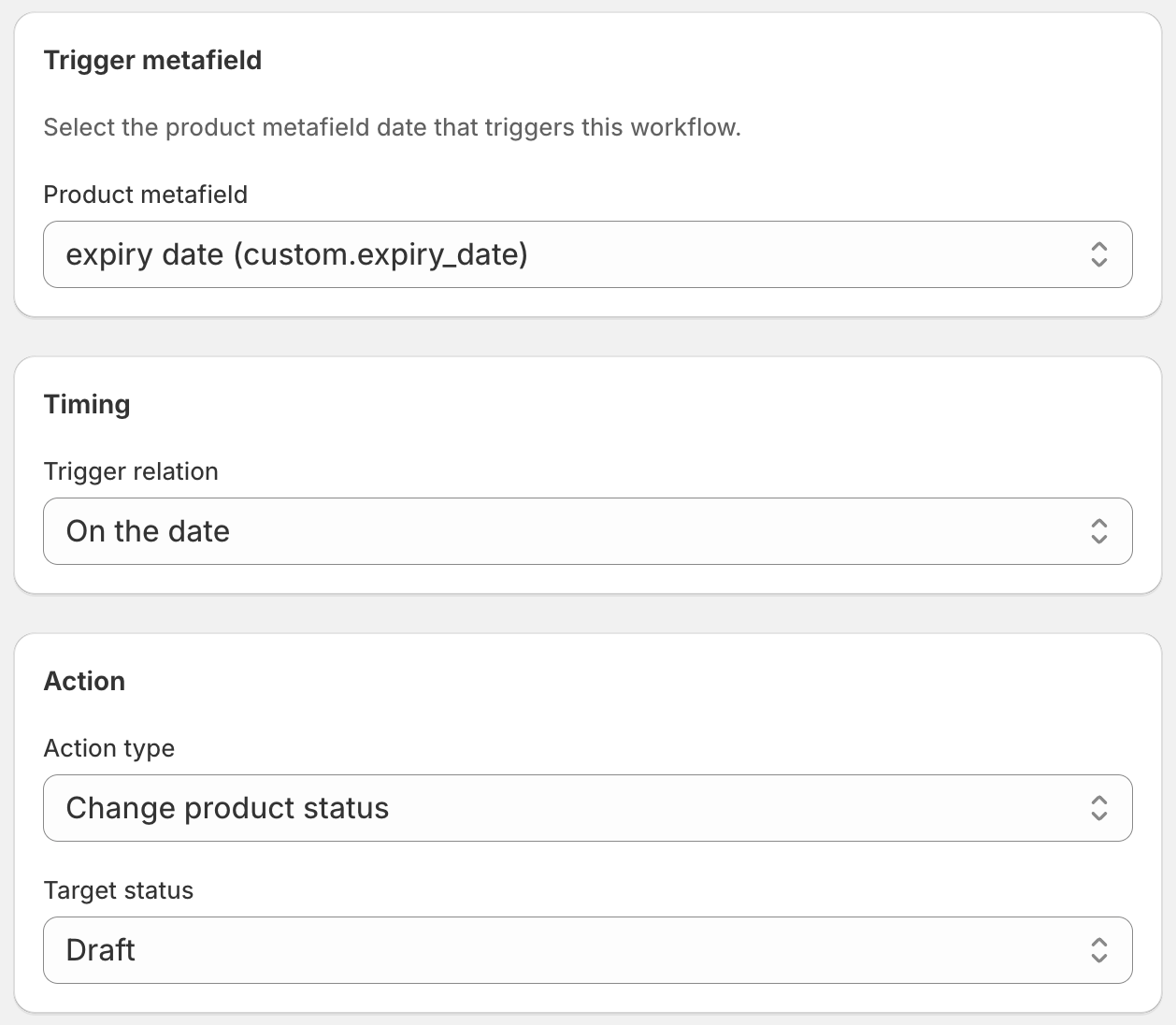
That's it. When the discontinuation date arrives, DateCue archives the product. It disappears from your storefront, your automated collections, and customer search, all on its own.
If you pictured a product countdown timer that archives the product at the deadline, here's the honest split. DateCue does the archive (the part that takes it off sale on the date), but it doesn't draw a visible countdown on the page. A storefront countdown is a theme or app feature, not something DateCue renders. If you want the on-page timer as well as the automatic archive, pair DateCue with a theme countdown app: the timer does the visuals, DateCue does the actual hide at zero.
How do I warn customers before a product is archived?
Run a second workflow on the same date metafield with an offset. The last-chance tag workflow adds a "last-chance" tag 14 days before the discontinuation date. That tag feeds a clearance collection, so shoppers still interested get a nudge before the product goes.
Both workflows run from the same custom.discontinue_date metafield. The last-chance tag goes on at day -14, the product archives at day 0. If you've tried to build this in Shopify Flow and hit a wall, that's expected: see why Flow can't compare product dates for the full reason.
How do I set discontinuation dates in bulk?
Retiring a whole line at once is a bulk-editor job. Filter your products by collection or vendor, open Shopify's bulk editor, and set custom.discontinue_date across the whole selection in one pass. DateCue picks them all up on its next check cycle and archives each one on its own date.
💡 Archiving doesn't delete: Archived products are fully recoverable. If you change course on a product retirement, find it in admin (filter Products by "Archived"), click in, and set it back to Active. The custom.discontinue_date metafield will still be there, so clear it or update it so DateCue doesn't archive it again.
Frequently asked questions
Can I archive products to draft instead?
Yes. If you'd rather move products to Draft (keeping them recoverable but not archived), change the action to "Set status → Draft." Use draft if you might reactivate the product later and want it to stay in a more accessible state. Use archived for permanent retirements.
What happens to existing orders for an archived product?
Existing orders are not affected. Archiving only changes whether the product appears in your storefront and collections. Historical orders remain intact and accessible. Customers who already purchased can still view their order history normally.
Can I set different end dates per product variant?
DateCue acts at the product level, so the archive action applies to the whole product. If specific variants are being discontinued while others continue, handle those via Shopify's variant availability (set quantity to 0 or mark as unavailable) rather than archiving the whole product.
Will DateCue notify me before the archive happens?
Not by default. Add a second workflow on the same metafield with an offset (e.g. 3 days before) and a "Send staff email" action. You'll get an email reminder before the archive happens, giving you time to reconsider or update inventory records. Two workflows fits on Starter ($9/mo).
Can DateCue show a product countdown timer that archives the product?
DateCue handles the archive half. On the end date it sets the product to Archived so it's automatically removed from sale. It doesn't draw a countdown timer on your storefront; that's a theme or app feature. Pair a theme countdown app with DateCue to get the visible timer plus the automatic archive at zero.
How much does DateCue cost?
DateCue is free forever for up to 100 product cues a month. Paid plans start at $9/month (Starter: 10,000 cues) and scale to $19/month (Scale: 100,000 cues, plus webhooks). All paid plans include a 14-day free trial.
A self-cleaning catalogue, free forever.
One workflow, fifty products, no card. Set a discontinuation date and never think about it again.
Install free on ShopifyFree: 100 cues/month. Upgrade only when you outgrow it.