
Auto-Draft Shopify Products That Are Past Their Sell-By Date

Most stores carry active products that have quietly outlived their intended run: limited edition items, event-specific merchandise, seasonal goods, promotional bundles. They stay live because nobody went back and removed them. Here's how to auto-draft Shopify products past their sell-by date, so the cleanup is built into the product record from the start.
Why does a bloated catalogue hurt your store?
A bloated active catalogue harms your store in several ways. Customers find irrelevant products in search, collections fill with clutter, and out-of-stock "ghost" products linger in navigation. Setting each product's status by hand never scales. The fix: give every time-limited product an end date at creation, and let DateCue enforce it.
Step 1: Create the sell-by metafield
A metafield stores the sell-by date on each product so DateCue knows when to act. In your Shopify admin, open Settings → Custom data → Products and add a new definition. Give it the namespace and key below, set the type to Date, and save. That's the whole setup.
The two values to enter:
- Namespace and key:
custom.sell_by_date - Type: Date
Make it a habit to set this on every time-limited product at creation time. Products without the metafield are ignored by the workflow entirely.
Step 2: The DateCue workflow
Build one workflow that reads custom.sell_by_date and sets the product status to Draft on that date. There's nothing else to wire up: no Flow date conditions, no scripts. DateCue checks due dates every minute, so a product drafts itself the moment its sell-by date arrives. The config is three fields, shown below.
Timing: On the date
Action: Set status → Draft
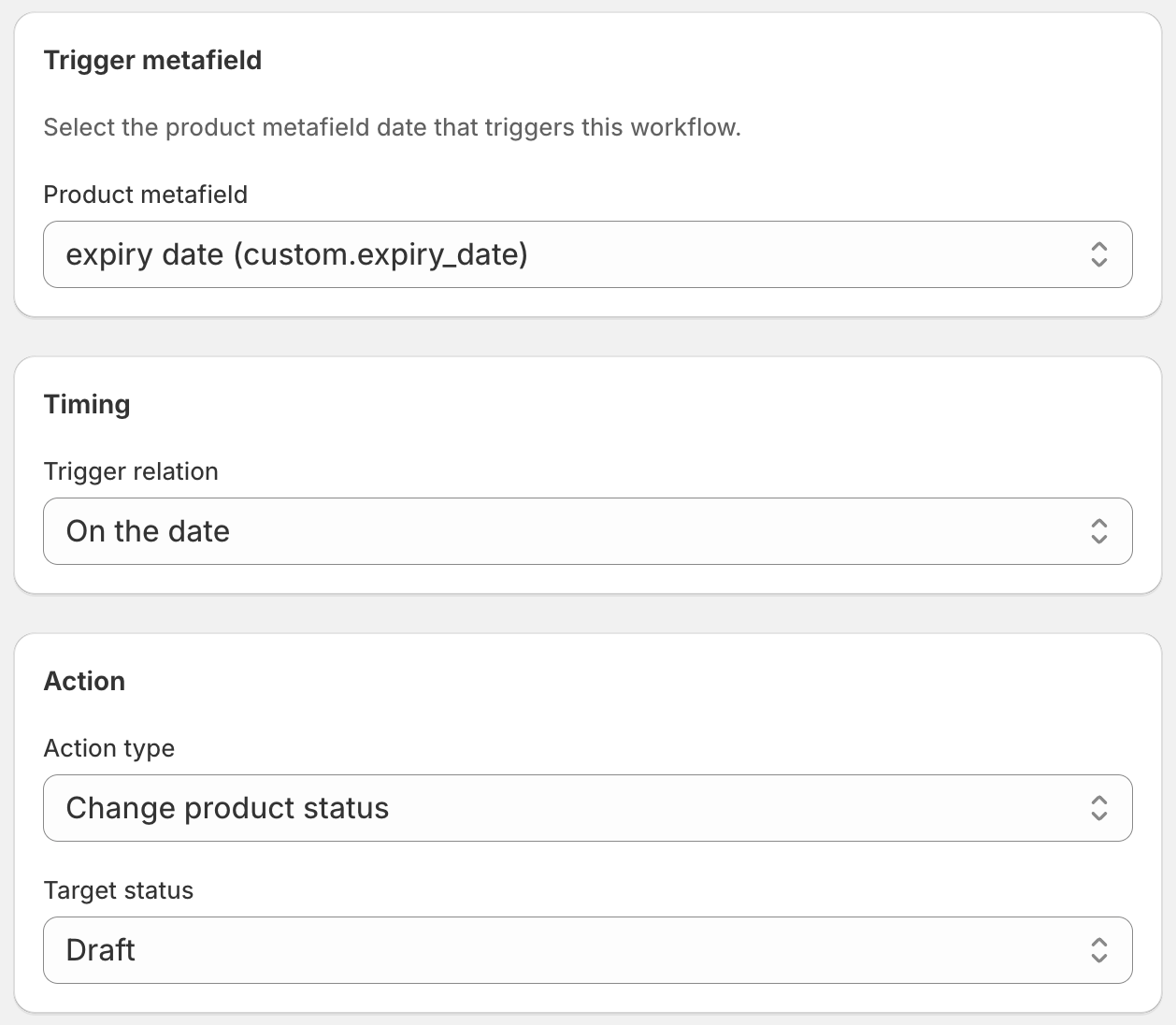
When the sell-by date arrives, DateCue moves the product to Draft. It disappears from collections, search, and the storefront. Your catalogue stays current without anyone manually reviewing it.
Draft or archive: which status should you use?
Use Draft for products you might bring back, and Archived for ones that won't return. A drafted product stays editable in your admin but leaves the storefront, so it's right for restockable limited runs, repeat promotional bundles, or seasonal lines you'll reactivate next year. Shopify's product status guide covers both states.
Use Archived for products that won't come back. Archived products are retained for reporting and order history but are fully retired from the catalogue. Use this for one-time event merchandise, expired promotions, or discontinued lines. See Archive Shopify Products Automatically on Their End Date for the archiving workflow.
How do you get a warning before a product drafts?
Add a second workflow that fires a few days before the sell-by date and emails your team. Use an offset of, say, 3 days, with a send-email action. You get a heads-up before anything disappears from the storefront, so there's time to extend the date or restock. The config sits below.
Timing: 3 days before the date
Action: Send email → team@yourstore.com
💡 Retroactive cleanup: Have a catalogue full of products that should have been removed already? Set custom.sell_by_date to yesterday (or any past date) on those products and DateCue will draft them on its next check cycle, within a minute. Use Shopify's bulk editor and tags to set the metafield on multiple products at once rather than doing them one by one.
Frequently asked questions
What if the product is still selling well when the sell-by date arrives?
Update the custom.sell_by_date to a later date. DateCue will honour the new date and not draft the product until then. The workflow fires on whatever value is currently in the metafield, so changing it adjusts when it runs.
Can I set sell-by dates on products in bulk?
Yes. Use Shopify's bulk editor. Filter your products by collection, vendor, or tag, select the ones you want to set, open the bulk editor, and update custom.sell_by_date across all of them at once. For example, tag all limited-run items with "limited" and bulk-update just those.
Will drafting a product cancel existing orders?
No. Drafting changes future visibility only. All existing orders for the product remain intact and will be fulfilled normally. Drafting simply prevents new orders from being placed.
How is this different from the auto-hide expiry workflow?
The auto-hide expiry workflow is for products with a hard expiry (perishable goods or time-bound licences) that you remove because they're no longer valid. This workflow is about catalogue hygiene: removing products that have run their course commercially, whether or not the product itself has expired. The mechanics are identical; the intent differs.
How much does DateCue cost?
DateCue is free forever for up to 100 product cues a month. Paid plans start at $9/month (Starter: 10,000 cues) and scale to $19/month (Scale: 100,000 cues, plus webhooks). All paid plans include a 14-day free trial.
A self-cleaning catalogue, free forever.
Set sell-by dates at creation time. DateCue handles the rest.
Install free on ShopifyFree forever: 100 cues/month. No card required.