
Auto-Start a Shopify Sale by Adding an On-Sale Tag

Running a sale should be as simple as setting a date. To auto-start a Shopify sale, you set a sale start metafield and let DateCue add the "on-sale" tag to every product the moment your promotion begins. No logging in at midnight, no bulk editing, no spreadsheet.
Why are tags the key to automatic sale collections?
Tags are the trigger that fills a sale section without manual work. Shopify's automated collections show any product carrying the "on-sale" product tag in a dedicated section. The hard part is timing: getting that tag on at the right moment and off again when the promotion ends. DateCue handles both sides.
This guide covers the start. For ending the sale automatically, see End a Shopify Sale and Clean Up Tags Automatically. If you've tried to schedule this in Flow and hit a wall, my guide to why Shopify Flow date comparisons fail explains the gap DateCue fills.
Step 1: Create the sale start metafield
First you need a date field to drive the workflow. In Shopify admin, open Settings, then Custom data, then Products and add a metafield for your sale start date. This is the value DateCue reads to decide exactly when each product should pick up the on-sale tag. Use these settings:
- Namespace and key:
custom.sale_start - Type: Date and time (if you need hour-precise timing) or Date
Set this metafield on every product that's part of your upcoming promotion.
Step 2: Create the sale collection
Next, build the section shoppers will land on. In Shopify admin go to Products, then Collections, then Create collection, and set it to Automated with the rule Product tag is equal to on-sale. Save. This automated collection fills itself the moment products start getting the tag, so you never add items by hand.
Step 3: Set up the DateCue workflow
Now connect the date to the action. A DateCue workflow has three parts: the metafield it watches, the timing, and the action it runs. Point it at custom.sale_start, set the timing to fire on that date, and choose the add-tag action with the value "on-sale". That's the whole setup:
Timing: On the date
Action: Add tag → on-sale
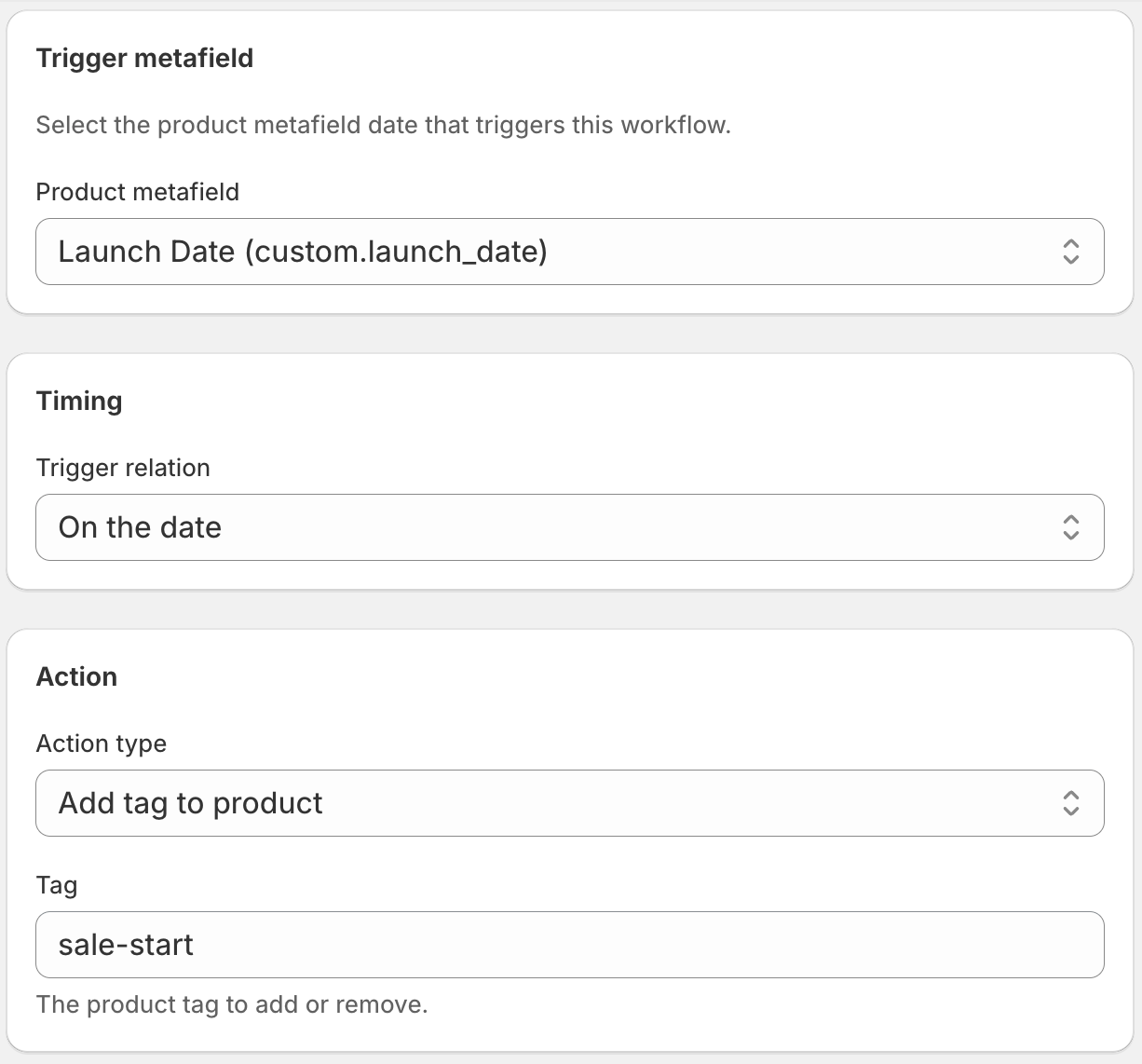
When your sale date arrives, DateCue tags every product with custom.sale_start set to that date. They appear in your sale collection immediately.
Can products go on sale at different times?
Yes. The workflow fires per product, not per batch, so each item follows its own custom.sale_start date. Set a different value on every product and DateCue tags each one precisely when its individual promotion begins. The same per-product timing powers a new-arrival auto-tag on launch day, just with a different date field.
How do I pair this with my theme's sale badge?
Match the tag name. Many Shopify themes show a "Sale" badge on products carrying a specific tag, so check your theme's documentation first. If the badge is driven by a tag (common in themes like Dawn), use that exact tag name in the DateCue add-tag action instead of "on-sale", and the badge and collection update together.
💡 Price changes are separate: DateCue adds the tag. It doesn't change the product's price. Your actual sale pricing should be set through Shopify's compare-at price or via a discount code. The tag workflow handles visibility (the sale collection, any theme badges) while you control pricing directly in Shopify. If you only need to schedule when a product itself goes live, Shopify's built-in future publishing covers that; DateCue is for the tag and status changes Shopify can't schedule on a date.
Frequently asked questions
Can I use this for a store-wide sale?
Yes. Set the custom.sale_start metafield on all products you want to include and they'll all get tagged at the same time. For very large catalogues, DateCue processes products in batches on its regular schedule, so there may be a few minutes between the first and last product being tagged.
Does the sale collection update instantly?
Shopify updates smart collection membership within a few minutes of a tag change. DateCue checks every minute, so the tag is applied on time, and the collection follows shortly after.
What if my sale starts at midnight?
Use a Date and time metafield and set the value to midnight on the sale day in your store's timezone. DateCue will fire the workflow as soon as that moment passes on its next check cycle (within a minute).
How do I end the sale automatically?
Create a second metafield custom.sale_end and a second workflow that removes the "on-sale" tag on that date. Full walkthrough: End a Shopify Sale and Clean Up Tags Automatically.
How much does DateCue cost?
DateCue is free forever for up to 100 product cues a month. Paid plans start at $9/month (Starter: 10,000 cues) and scale to $19/month (Scale: 100,000 cues, plus webhooks). All paid plans include a 14-day free trial.
Skip the midnight login on sale day.
Free for one workflow. Add an end-sale workflow on Starter ($9/mo).
Install free on ShopifyFree: 100 cues/month. Starter: 10,000 cues/month for $9/mo.