
Auto-Expire Shopify Unlisted Products After a Date

A Shopify unlisted product is active and buyable, but hidden from collections and navigation, so only people with the direct link can reach it. It's perfect for flash sales, VIP access, and limited drops. The hard part is remembering to close the window when the offer expires. DateCue handles that for you: when the expiry date passes, it sets the product to Draft and the link goes dead, no late-night admin login required.
What is an unlisted product in Shopify?
An unlisted product isn't an official Shopify product status. It's a pattern: the product is set to Active so it can be purchased, but it's deliberately kept out of every collection and out of your navigation. Customers reach it only through a direct URL you choose to share.
This pattern is used for:
- Flash sales shared via email or social, where only people with the link can buy
- VIP or loyalty access, giving early entry before the public launch
- Wholesale or trade-only pricing, a private product URL given to trade customers
- Limited drops, a product that exists for 24 or 48 hours only
The shared challenge is that someone has to close the window when the offer ends. DateCue handles that, and the whole thing hangs off a single product date you've already set. If you're new to date metafields, my guide to product date automations walks through the setup.
Step 1: Create the expiry metafield
You need one date field that records when access ends. In your admin, open Settings, then Custom data, then Products, and add a new metafield definition. Give it the namespace and key custom.access_expires, and pick the Date and time type so you can close the window to the exact minute.
- Namespace and key:
custom.access_expires - Type: Date and time (recommended, since most limited access windows are time-specific)
Set this on unlisted products when you create them.
Step 2: Build the DateCue workflow
The workflow tells DateCue what to do and when. Point it at your custom.access_expires metafield, set the timing to fire on the date, and choose the action: set status to Draft. Add a tag filter so it only touches your unlisted products. Three fields, and the offer closes itself.
Timing: On the date
Action: Set status → Draft
Filter: Tag includes: unlisted
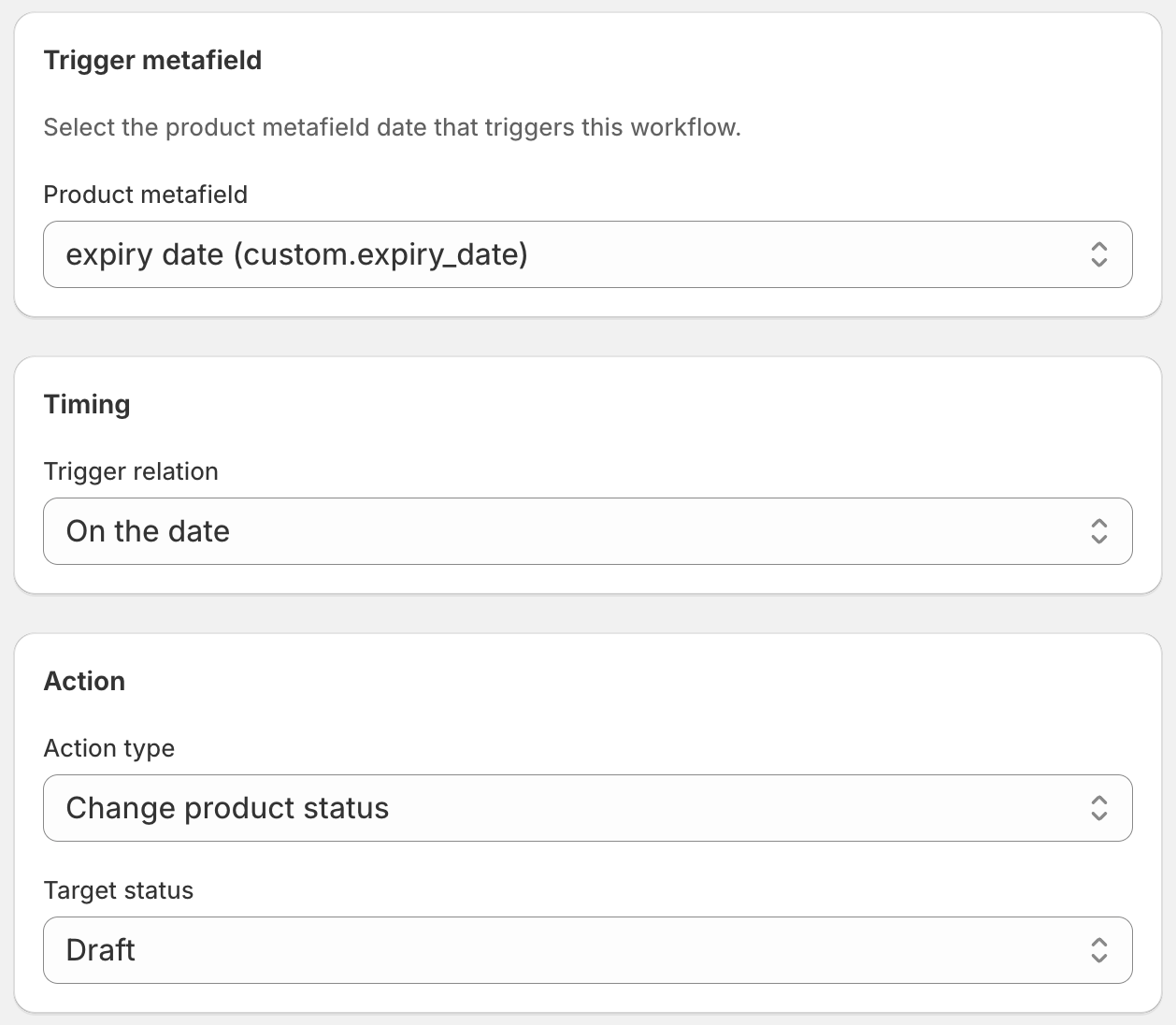
When the expiry time passes, DateCue sets the product to Draft. Anyone who visits the URL sees a 404. The offer is closed without you logging in at a specific time. This is the same approach I cover for any time-sensitive listing in auto-hiding Shopify products on an expiry date.
Why tag your unlisted products?
A product tag like "unlisted" does two jobs here. It lets the workflow filter down to only the products you mean (using the tag filter above), and it gives you a one-click way to find every hidden product in your admin. Add the tag when you create the product, then remove it or archive the product after the window closes.
How do I extend or shorten the window?
Just edit the date. Open the product, change the custom.access_expires metafield to the new expiry time, and save. DateCue reads the current metafield value on every check, so the moment you change it, the workflow recalculates when to fire. You can push a flash sale longer or cut it short in real time, no rebuild needed.
The reverse case, opening a product on a future date instead of closing it, works the same way. I cover that in scheduling a Shopify product publish date. And if you've already tried to do this in Shopify Flow and the date comparison didn't behave, my guide to why Flow date comparisons fail explains the gap DateCue fills.
💡 Not the same as password-protected pages: DateCue closes the product by changing its status to Draft when the date passes. It doesn't add any purchase restriction during the window. If you want to restrict purchasing to people with a discount code or password while the window is open, that's a separate Shopify setup (automated collections and discount codes, or a lockdown app). DateCue handles the automatic close at expiry.
Frequently asked questions
What happens to people who try to buy after expiry?
Once the product is set to Draft, the product URL returns a "page not found" error. Any customer who visits the link after expiry cannot purchase. Existing orders placed before expiry are unaffected.
Can I set the expiry to a specific hour, not just a date?
Yes. Use a Date and time metafield and set the exact expiry time. DateCue checks every minute, so the product will be drafted within a minute of the expiry moment.
Can I reactivate the product after expiry?
Yes. Drafting is fully reversible. Go to the product in admin, set it back to Active. If you want it unlisted again for a future window, set a new custom.access_expires date and DateCue will close it again at the new time.
What if I want to archive instead of draft on expiry?
Change the action from "Set status to Draft" to "Set status to Archived." Use archived if the product won't be used again. Use draft if you might reactivate it for a future window.
How much does DateCue cost?
DateCue is free forever for up to 100 product cues a month. Paid plans start at $9/month (Starter: 10,000 cues) and scale to $19/month (Scale: 100,000 cues, plus webhooks). All paid plans include a 14-day free trial.
Time-limited offers, on time.
Free for one workflow. DateCue closes the window the minute your date passes.
Install free on ShopifyFree forever: 100 cues/month. No card required.